
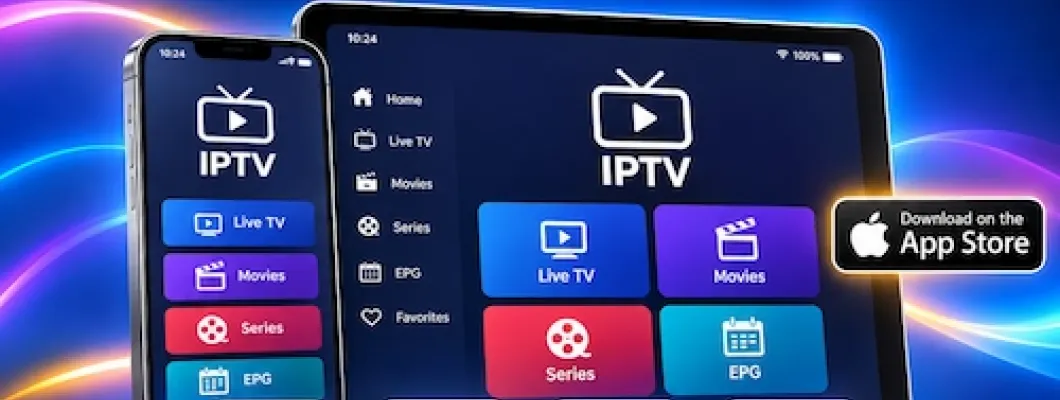
Want to watch IPTV on your iPhone or iPad? Apple's mobile devices support a variety of IPTV media players that can organize authorized live television streams, movies, on-demand content, and electronic program guides.
In this comprehensive 2027 guide, we'll show you how to install IPTV on iPhone and iPad using four popular applications: iMPlayer, Hot Player, UHF Player, and IBO Pro Player. You'll learn how to install each app, add an M3U playlist or supported Xtream Codes login, configure your streaming experience, and troubleshoot common problems.
If you're comparing compatible streaming subscriptions, explore BossTV's Canadian IPTV services and review the available connection methods before choosing an application.
Table of Contents: iPhone & iPad IPTV Setup Guide
- What You Need Before Installing IPTV on iPhone or iPad
- Understanding IPTV Player Apps vs. IPTV Subscriptions
- 1. iMPlayer IPTV Setup Guide
- 2. Hot Player IPTV Setup Guide
- 3. UHF Player IPTV Setup Guide
- 4. IBO Pro Player IPTV Setup Guide
- iPhone & iPad IPTV App Comparison Matrix
- M3U Playlists vs. Xtream Codes Login
- How to Reduce IPTV Buffering on iPhone & iPad
- Common IPTV Troubleshooting & Fixes
- Frequently Asked Questions (FAQs)
What You Need Before Installing IPTV on iPhone or iPad
Before starting your IPTV setup, prepare the following:
- An iPhone or iPad with a compatible iOS or iPadOS version.
- A stable Wi-Fi or mobile internet connection.
- An Apple account with access to the App Store.
- An authorized IPTV subscription or playlist.
- An M3U playlist URL or supported Xtream Codes-style login credentials.
For official installation guidance, visit Apple's instructions for downloading apps on iPhone and iPad.
Important: IPTV players generally do not include television channels. You must provide your own authorized content source. App features, availability, and activation fees may vary.
Understanding IPTV Player Apps vs. IPTV Subscriptions
One of the most important things to understand is the difference between an IPTV player application and an IPTV subscription.
IPTV player application: Software such as iMPlayer, Hot Player, UHF, or IBO Pro Player. These applications organize compatible media playlists, display available content, and provide playback controls.
IPTV subscription: A separate content service that provides authorized streams and connection information, such as an M3U URL or server login credentials.
Paying for a player activation does not automatically include a content subscription. Likewise, purchasing a subscription does not necessarily include a paid player license.
Explore BossTV's M3U and Xtream Codes IPTV packages to compare connection formats.
1. iMPlayer IPTV Setup Guide for iPhone & iPad
iMPlayer is an IPTV media player designed to help organize playlists, live television, on-demand content, and program guide information where supported.
Step 1: Install iMPlayer
- Open the Apple App Store on your iPhone or iPad.
- Search for iMPlayer IPTV Player.
- Confirm the correct application listing.
- Download and open the app.
Step 2: Add Your IPTV Playlist
- Find the option to add a playlist or media source.
- Select a connection method supported by your app version.
- If using M3U, paste your complete playlist URL.
- If using a supported Xtream-style connection, enter the server URL, username, and password.
- Give the playlist a recognizable name.
- Save the configuration.
Step 3: Load Channels and Test Playback
- Allow the playlist to finish loading.
- Open the Live TV category or another available section.
- Select a channel to confirm playback.
- Explore favorites, search, and EPG features where available.
Tip: If your playlist fails to load, verify the complete server address, including any required port. Some premium features may require payment.
2. Hot Player IPTV Setup Guide for iPhone & iPad
Hot Player is a media player that supports playlist-based streaming. Available features depend on the specific iOS application and version.
Step 1: Download Hot Player
- Open the App Store.
- Search for Hot Player.
- Verify the application name and developer.
- Install and launch the player.
Step 2: Import Your M3U Playlist
- Find the playlist management or import option.
- Select the supported M3U or M3U8 import method.
- Copy your authorized playlist URL.
- Paste the complete link into the playlist field.
- Save or import the playlist.
- Wait for the available content to appear.
Step 3: Start Watching
- Open the imported playlist.
- Select a channel or video.
- Test playback.
- Adjust available player settings as needed.
Important: Similarly named Hot Player applications and websites may have different developers and activation processes. Follow the instructions associated with the verified app you installed.
3. UHF Player IPTV Setup Guide for iPhone & iPad
UHF is an IPTV media player designed for Apple devices. It supports playlist management and common IPTV connection formats.
Step 1: Install UHF
- Open the App Store.
- Search for UHF – Love Your IPTV.
- Download the application.
- Open UHF and follow the initial setup prompts.
Step 2: Add an IPTV Source
- Select the option to add a playlist or source.
- Choose M3U if you have a playlist URL.
- Alternatively, select a supported Xtream-style connection.
- Enter your playlist URL or server credentials.
- Name the playlist and save it.
Step 3: Organize Your Content
- Wait for the playlist to load.
- Browse Live TV and other supported categories.
- Test an available stream.
- Explore favorites, search, and playback settings.
Features may vary between app versions and subscription tiers. Check the current App Store listing for premium feature information.
4. IBO Pro Player IPTV Setup Guide for iPhone & iPad
IBO Pro Player is an IPTV media player that may use a web-based playlist management process, depending on the application version.
Step 1: Install IBO Pro Player
- Open the Apple App Store.
- Search for IBO Pro Player.
- Verify the correct application listing.
- Install and open the player.
Step 2: Locate Playlist Management Details
- Read the instructions on the application's welcome screen.
- Find the playlist management or import option.
- If a device identifier or device key appears, keep it available.
- If the app directs you to a management website, use only the official address shown by the verified application.
Step 3: Upload Your IPTV Playlist
- Prepare your authorized M3U playlist URL.
- Follow the application's official playlist setup instructions.
- Enter the required device information if requested.
- Add the playlist URL.
- Save the configuration.
- Return to the app and refresh or restart it if necessary.
- Test an available stream.
Activation notice: Player activation may require a separate payment. Verify pricing directly with the application developer, and avoid submitting credentials to unverified websites.
iPhone & iPad IPTV App Comparison Matrix
Each IPTV player offers a different approach to playlist management and streaming.
| Application | Connection Method | Best Use Case |
|---|---|---|
| iMPlayer | M3U and supported Xtream-style login | Playlist organization and EPG |
| Hot Player | M3U / M3U8 | Simple playlist playback |
| UHF Player | M3U and Xtream-style sources | Apple-focused IPTV management |
| IBO Pro Player | M3U and supported playlist upload | Playlist management through app setup |
Which player should you choose? If you have Xtream-style credentials, compare iMPlayer and UHF. If you have an M3U playlist, consider the available features and interface of all four applications.
M3U Playlists vs. Xtream Codes Login
What Is an M3U Playlist?
An M3U playlist is a text-based format that identifies media streams. A content provider may supply a complete URL that a compatible IPTV player can import.
What Is an Xtream Codes-Style Login?
An Xtream-style connection typically requires three fields:
- Server URL: The content service endpoint.
- Username: Your account identifier.
- Password: Your account password.
Which Connection Type Should You Use?
Use the format supported by both your IPTV player and your authorized subscription. M3U playlists are widely compatible, while Xtream-style logins may simplify setup in applications that support them.
For additional information, browse BossTV's Xtream Codes and M3U IPTV options.
Security tip: Keep your playlist URL, username, and password private. Avoid sharing them on public websites.
How to Reduce IPTV Buffering on iPhone & iPad
Buffering may result from weak Wi-Fi, network congestion, high-bitrate video, or temporary service issues.
- Test your internet connection: Confirm that other streaming services and websites work normally.
- Improve Wi-Fi reception: Move closer to your router or use a less congested wireless network.
- Restart the IPTV application: Fully close the app and reopen it.
- Test another channel: Determine whether the problem affects one stream or several.
- Update the player: Check the App Store for available updates.
- Check storage: Make sure your iPhone or iPad has sufficient free space.
- Try a lower-resolution stream: If available, test a lower-bitrate option.
- Check service status: Contact your content provider if multiple streams remain unavailable.
You can also visit Apple Support for device and network troubleshooting.
Common IPTV Troubleshooting & Fixes
1. Playlist Does Not Load
Check the complete M3U URL or Xtream-style login details. Confirm that your subscription is active and that the application supports your connection method.
2. Channels Load but Do Not Play
Try another channel, restart the application, and test your internet connection. Contact your content provider if all streams fail.
3. TV Guide Is Empty
Refresh the electronic program guide if your application supports that feature. Some playlists do not include EPG data.
4. Application Requests Payment
Check the official App Store listing or developer instructions. Player activation and IPTV subscription fees are separate charges.
5. Application Is Not Available in Your Region
App availability depends on the developer, your Apple account region, device model, and operating system version.
6. IPTV Works on Wi-Fi but Not Cellular Data
Check whether cellular data is enabled for the application in your device settings. Also confirm that your mobile plan and content source permit mobile playback.
Frequently Asked Questions (FAQs)
Can I install IPTV on an iPhone without jailbreaking it?
Yes. Compatible IPTV players can be installed directly through the Apple App Store.
Which IPTV app is best for iPad?
The best option depends on your connection format and preferred features. iMPlayer and UHF are worth comparing for playlist organization and supported Xtream-style connections.
Can I use an M3U playlist on my iPhone?
Yes. Many iOS IPTV players support M3U or M3U8 playlist imports.
Do IPTV apps include television channels?
IPTV player applications generally do not provide channel subscriptions. You must supply your own authorized content source.
Can I use one IPTV subscription on my iPhone and iPad?
That depends on your provider's device and simultaneous-connection rules.
Why does IPTV buffer on my iPad?
Possible causes include weak Wi-Fi, network congestion, high-bitrate video, or temporary problems with the content source.
Does IBO Pro Player require activation?
Some versions or features may require paid activation. Check the developer's current terms.
Does Hot Player support Xtream Codes?
Support depends on the specific application and version. Check the current features before assuming Xtream-style login is available.
Can I watch IPTV using mobile data?
Yes, when supported by the application and content source. Streaming HD or 4K video can consume significant mobile data.
Final Thoughts: Setting Up IPTV on iPhone and iPad
Setting up IPTV on an iPhone or iPad is straightforward when you choose a compatible player and have the correct connection details. Install the application, add your authorized playlist or login credentials, and test playback before changing advanced settings.
iMPlayer, Hot Player, UHF, and IBO Pro Player offer different approaches to playlist management. Compare their supported formats, features, and activation requirements to find the one that suits your device.
For more information about streaming subscriptions and device compatibility, visit BossTV's IPTV packages and setup information.
Disclaimer: BossTV is not affiliated with the developers of the third-party applications discussed in this guide. App availability, compatibility, features, pricing, and activation requirements may change. Use IPTV players only with content you are authorized to access.